Advanced
Swing Updater Result Codes
When you call Swing Updater using the "Run shortcut" action, you will get a dictionary with a result code whose value is the action the user made.
This behaviour can be useful if you want your shortcut to behave differently according to the user choice. Here's a list of all the codes available:
| Code | Description |
|---|---|
| Install | Everytime the user selects the Update/Rollback option, this doesn't necessarily mean that the user installed the update. |
| Skipped | The user skipped the update meaning the update/rollback popup won't show up again until a new version gets released. |
| Not Now | The user ignored the update for now. |
| Updated | No updates/rollbacks are available for the shortcut. |
| Already Skipped | The user has skipped this update before. |
| Unsupported | The system version the user is running on does not meet the minimum requirements of the next update. |
| Cooldown | An update check has been performed recently and the timeout hasn't passed yet. |
| Offline | No internet connection is available. |
| Error | There is a problem with your Swing Updater integration, if you get this code you should fix the issue as soon as possible! |
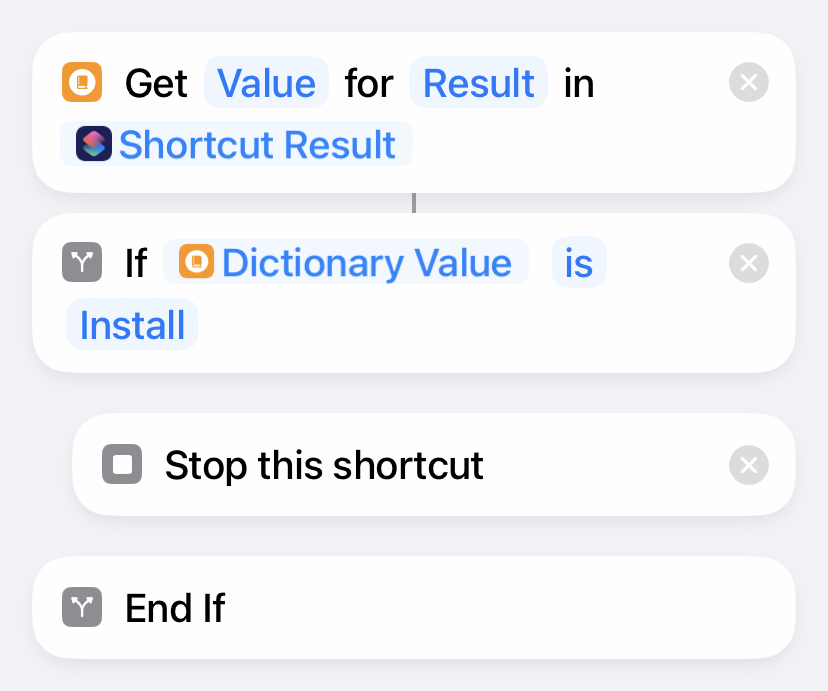
To access the returned code you will need to get the value of the Result key (Text type) and compare if it is the code you're looking for using the if condition.
Note
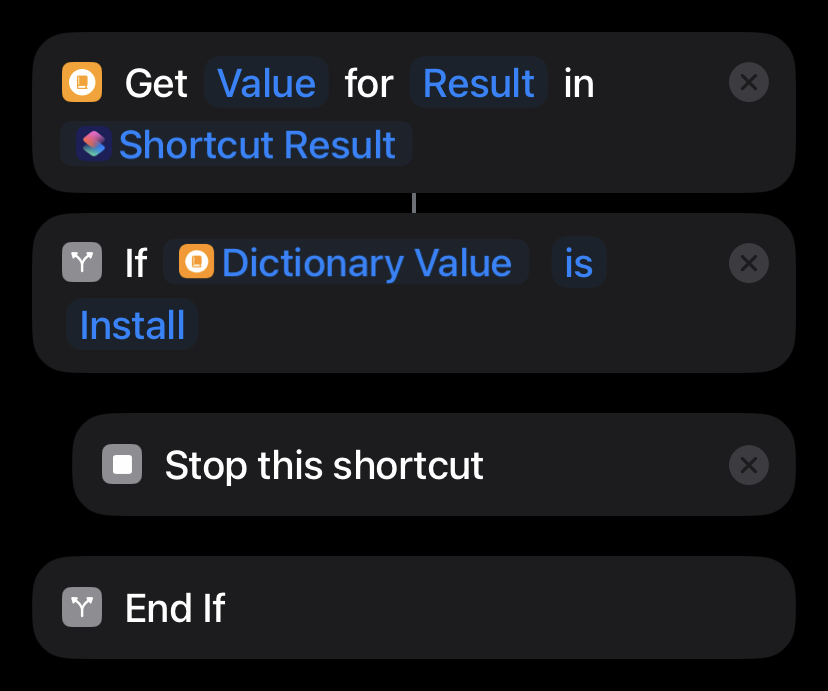
To avoid your shortcut from keep running when the user is installing an update, it is recommended to add the actions in the image above after the run shortcut action!